🎬
Netflix Verification Fix Guide
Follow these simple steps to solve the Netflix verification issue easily on Android device.
📱 Android Guide
⚡ Quick Fix
🎥 Video Help
▶ Watch Video Tutorial
Watch the full screen recording guide before following the steps.
Step 1
Verification Screen Appears
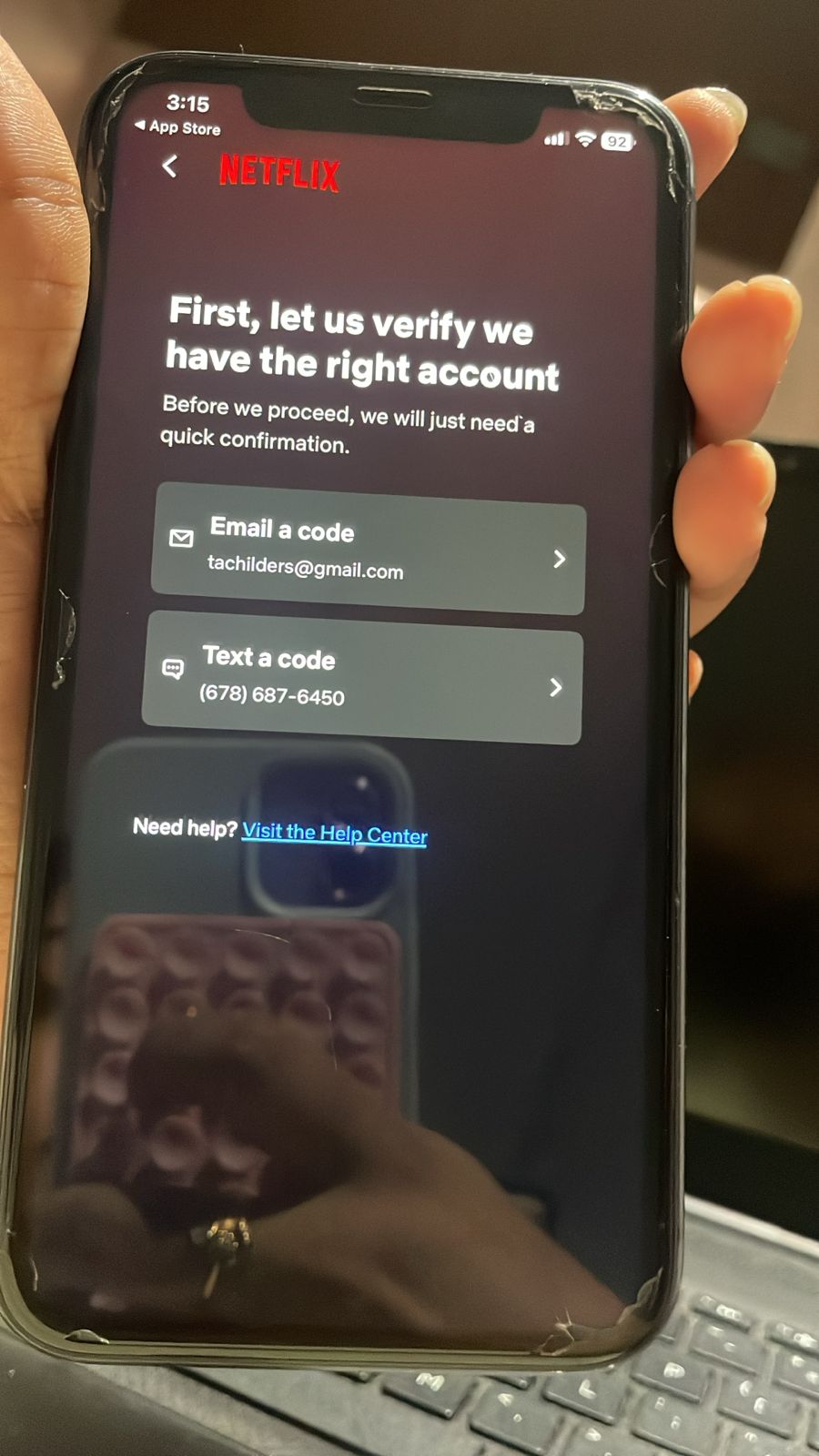
If Netflix asks for verification using email or text code, do not click on any option.
⚠ Important: Do not enter or request any verification code.
Step 2
Open Chrome Browser
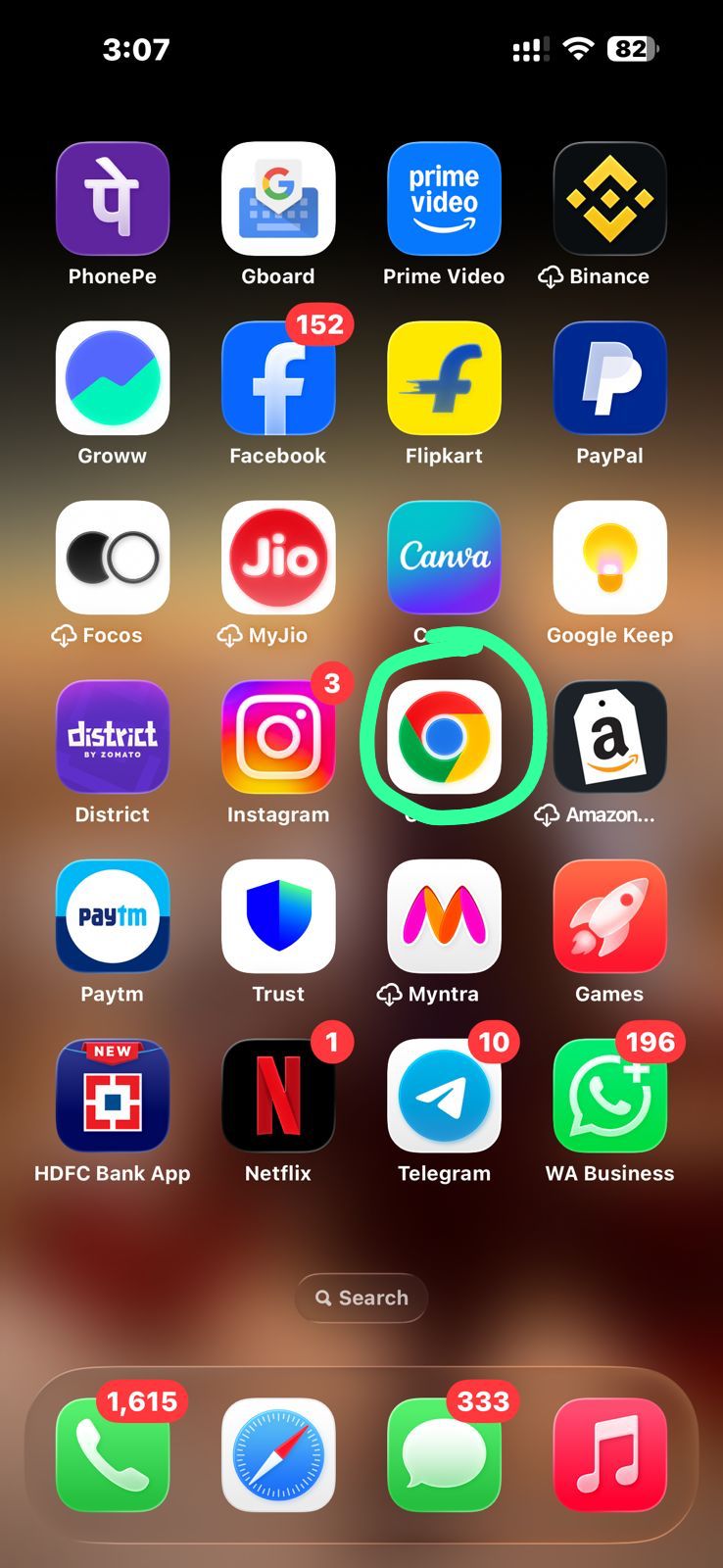
Open Google Chrome browser and paste the special Netflix link provided to you.
Step 3
Open Profile Section
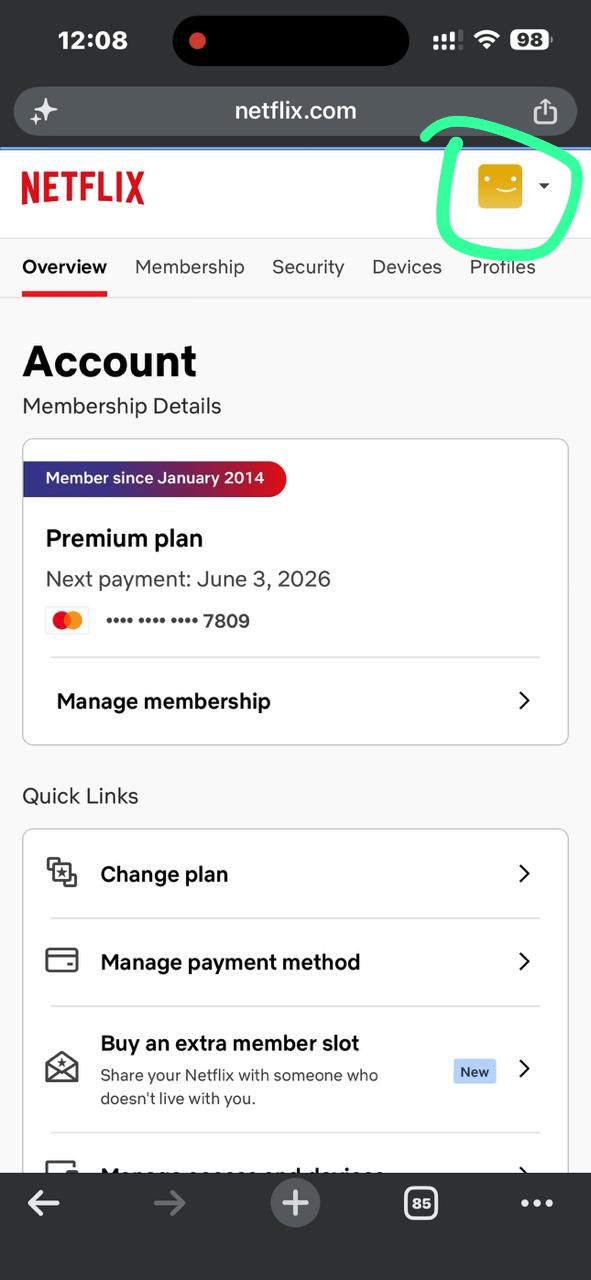
After Netflix opens in browser, click the profile icon from the top-right corner.
Step 4
Open Manage Profile
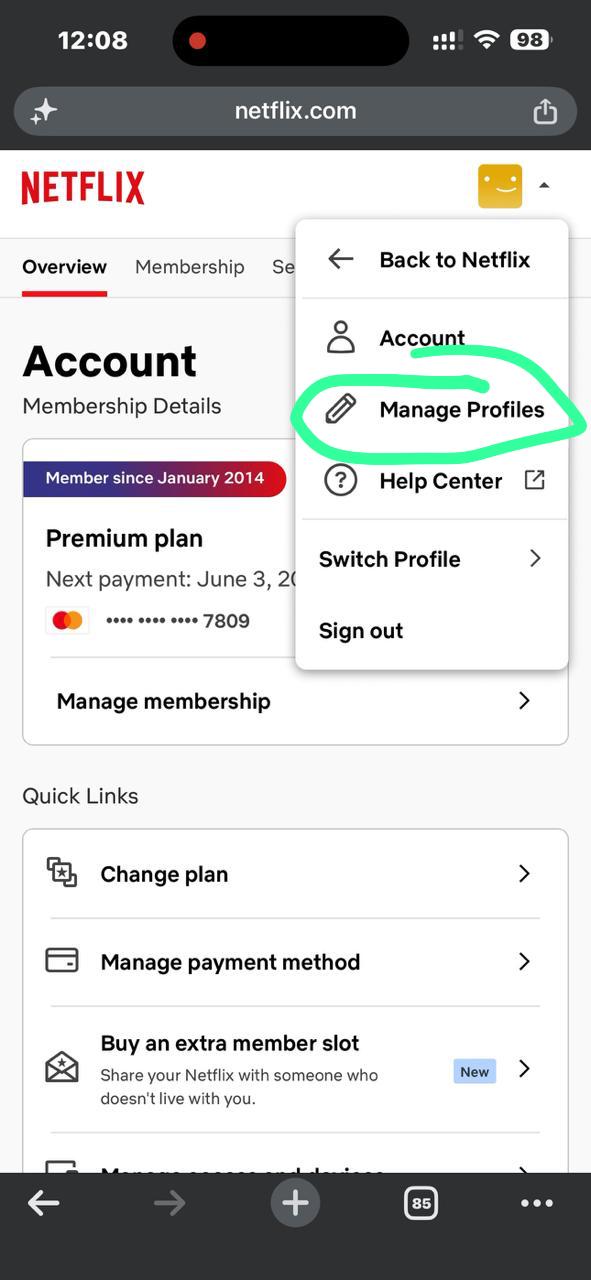
After Open Profile Icone, then click Manage Profile
Step 5
Click Netflix Logo
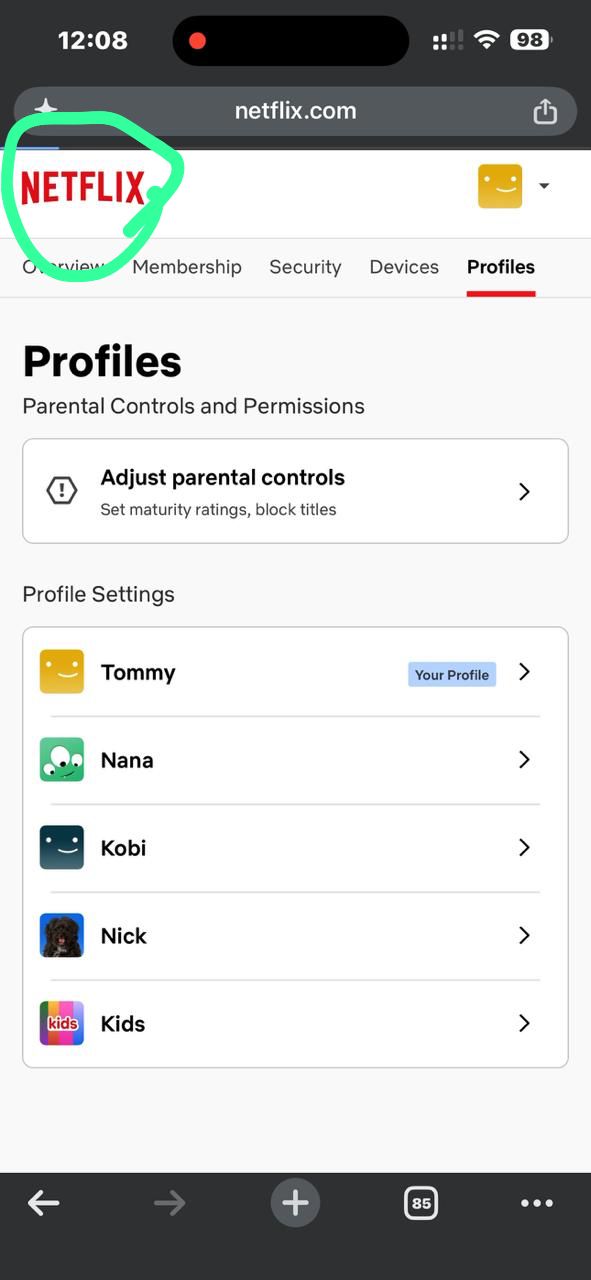
When the profile page opens, click the Netflix logo at the top-left side.
Step 6
Click Open App
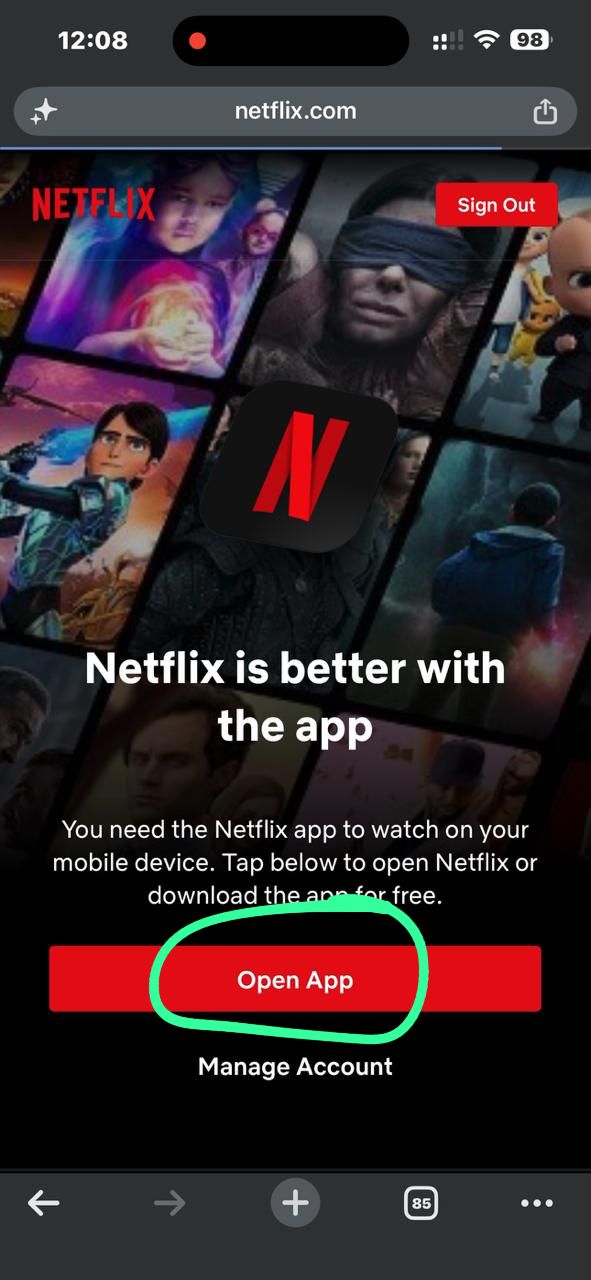
Now click the red “Open App” button.
Step 7
Enjoy Netflix
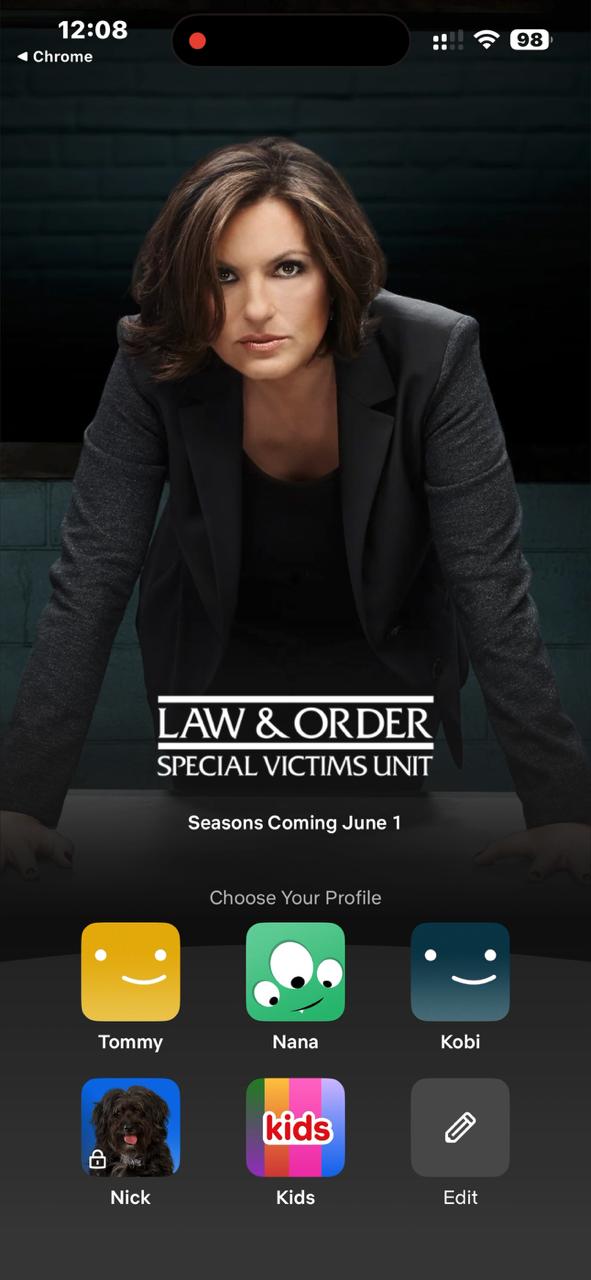
Netflix will open successfully. Select your profile and enjoy streaming.
🎉 Done! Netflix opened successfully.
Still Need Help?
If you are still facing any issue, contact support on WhatsApp.
💬 Contact on WhatsApp